

Disputes: Representatives
Learn how to raise a dispute on a conversation and add context for the change you want.
What is a dispute?
A dispute lets you challenge one or more conversation evaluation results when you believe a score should change. You can use it to flag a missed detail, correct a misunderstood answer, or add context that was not captured in the original review.
You can only raise a dispute from the conversation you handled, and only while the dispute window is still open.
Why raise a dispute?
It gives you a clear way to explain why a score should be reviewed.
It keeps your feedback tied to the exact conversation and criterion.
It lets your manager or administrator respond directly to the change you are requesting.
Before you start
Make sure the conversation is still within the dispute window. If the dispute has already been closed and your team allows re-opens, you can open the dispute again from the dispute details page.
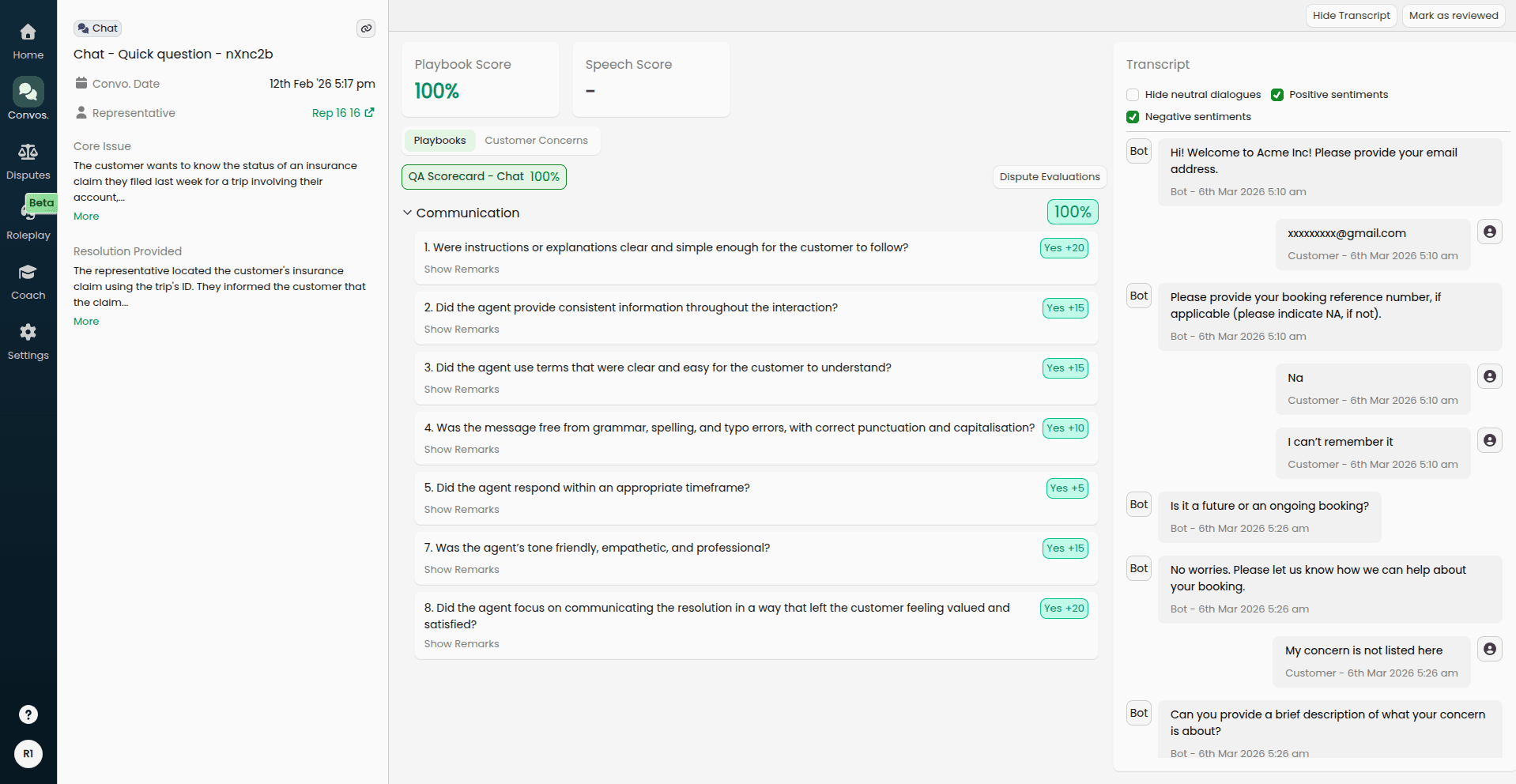
How to raise a dispute
Open the conversation in Conversations and review the score on the conversation detail page.
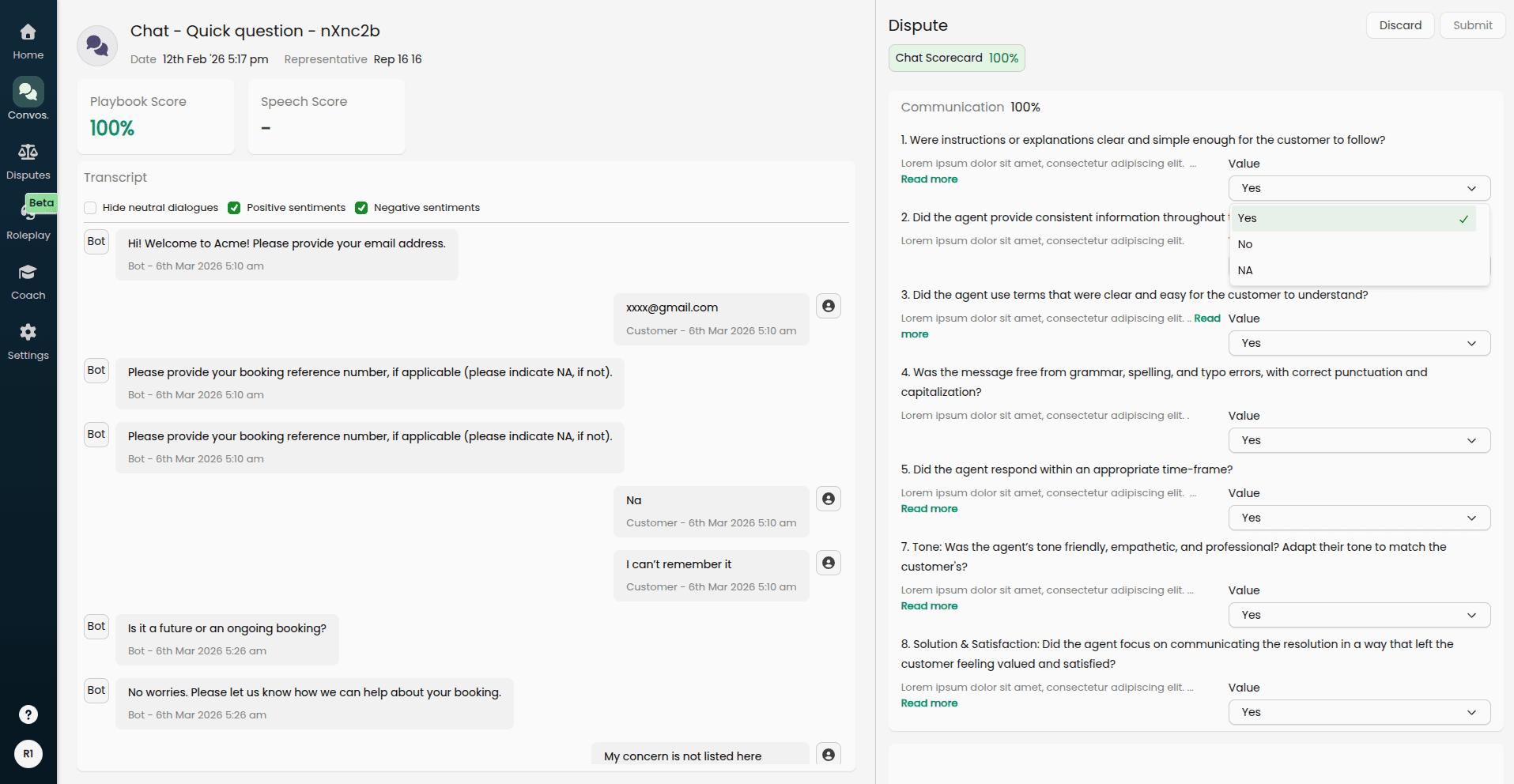
Select Dispute Evaluations to open the dispute screen.
Review the disputed criteria and change only the items you want reviewed.
Add notes where needed so your manager or administrator understands what should change and why.
Select Submit when you are ready to send the dispute.
If you are disputing a call, you can use the audio player and transcript together to move to the exact moment that supports your feedback.
What happens after you submit
After you submit, the dispute appears in the Disputes area for review. Your score does not change until a manager or administrator accepts or rejects the requested changes.
You can follow the dispute from the dispute detail page to see its current status, any notes added during review, and whether the final decision has been made.
Re-opening a closed dispute
If your team allows re-opens, you can re-open a closed dispute from the dispute detail page.
Open the closed dispute from Disputes.
Select Re-open Dispute.
Add your rebuttal for the criterion or criteria you want reviewed again.
Select Submit to send the dispute back for review.
Screenshot showing a closed dispute on the dispute detail page with Re-open Dispute and the rebuttal area visible before submission.
Next step
If you review disputes for your team, see Conversation Disputes for Managers and Administrators for the review and approval workflow.