

Disputes: Admins & Managers
Review disputed evaluations, accept or reject changes, and manage the settings that control the workflow.
What are conversation disputes?
Conversation disputes let representatives challenge evaluation results, and they give managers and administrators a place to review those requests. In the dispute review flow, you decide whether each requested change should be accepted or rejected, add context when needed, and close the dispute once the review is complete.
Why review disputes?
You can correct evaluation results when the original score missed important context.
You can document why a change was accepted or rejected, which keeps the decision clear for the rep.
You can keep disputes moving by closing them as soon as the review is complete.
Where to find disputes
Open Disputes from the main navigation to see the list of open and closed disputes. Use the filters at the top of the page to focus on the disputes you need to work on.
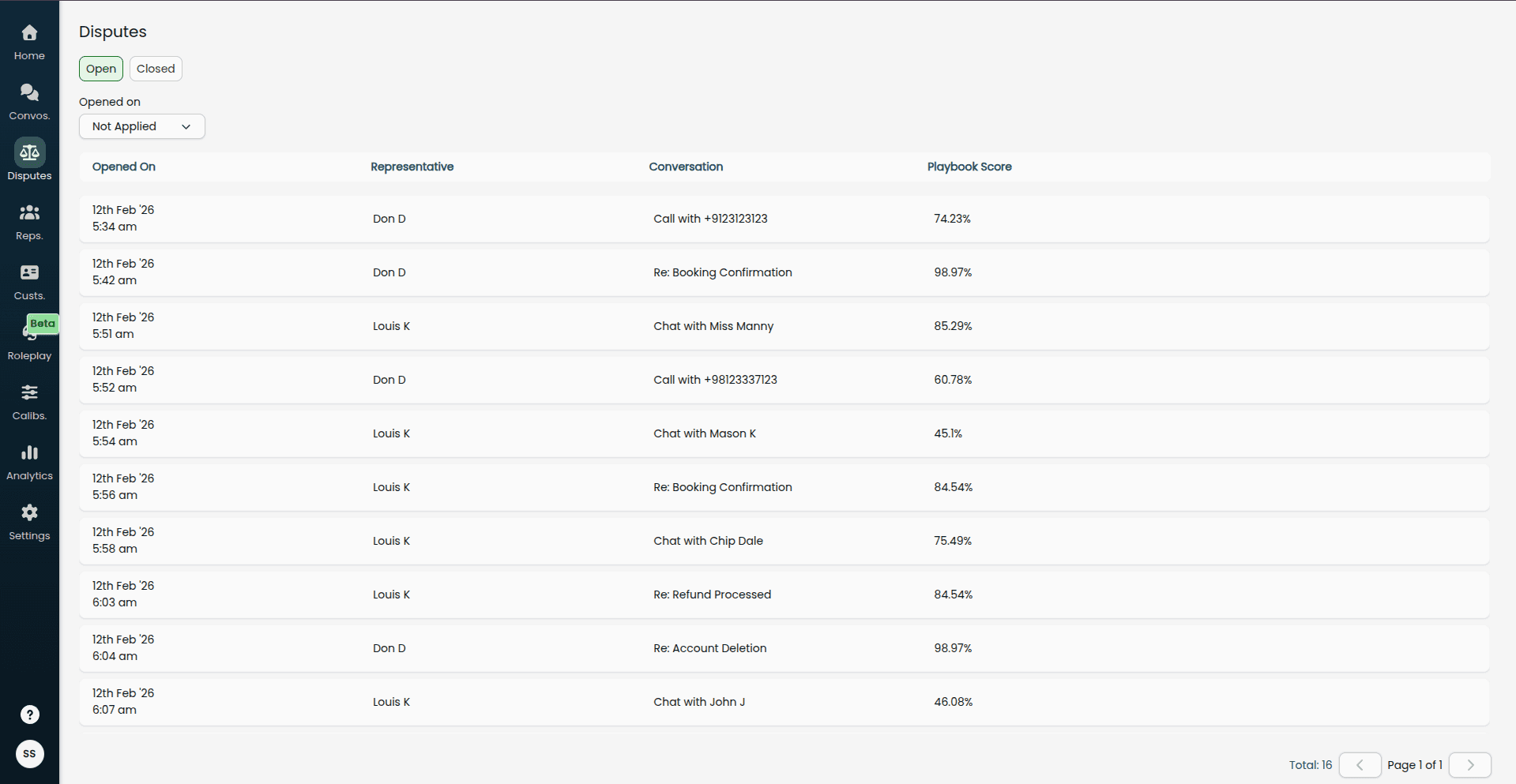
Click any dispute to open its detail page.
How to review an open dispute
Open the dispute from Disputes.
Review the conversation summary, score history, and any notes already attached to the dispute.
For each disputed criterion, choose whether to Accept or mark it as Not accepted.
If you accept a change, add the reason and any supporting note the team should see.
When every criterion has a decision, select Apply Changes & Close Dispute.
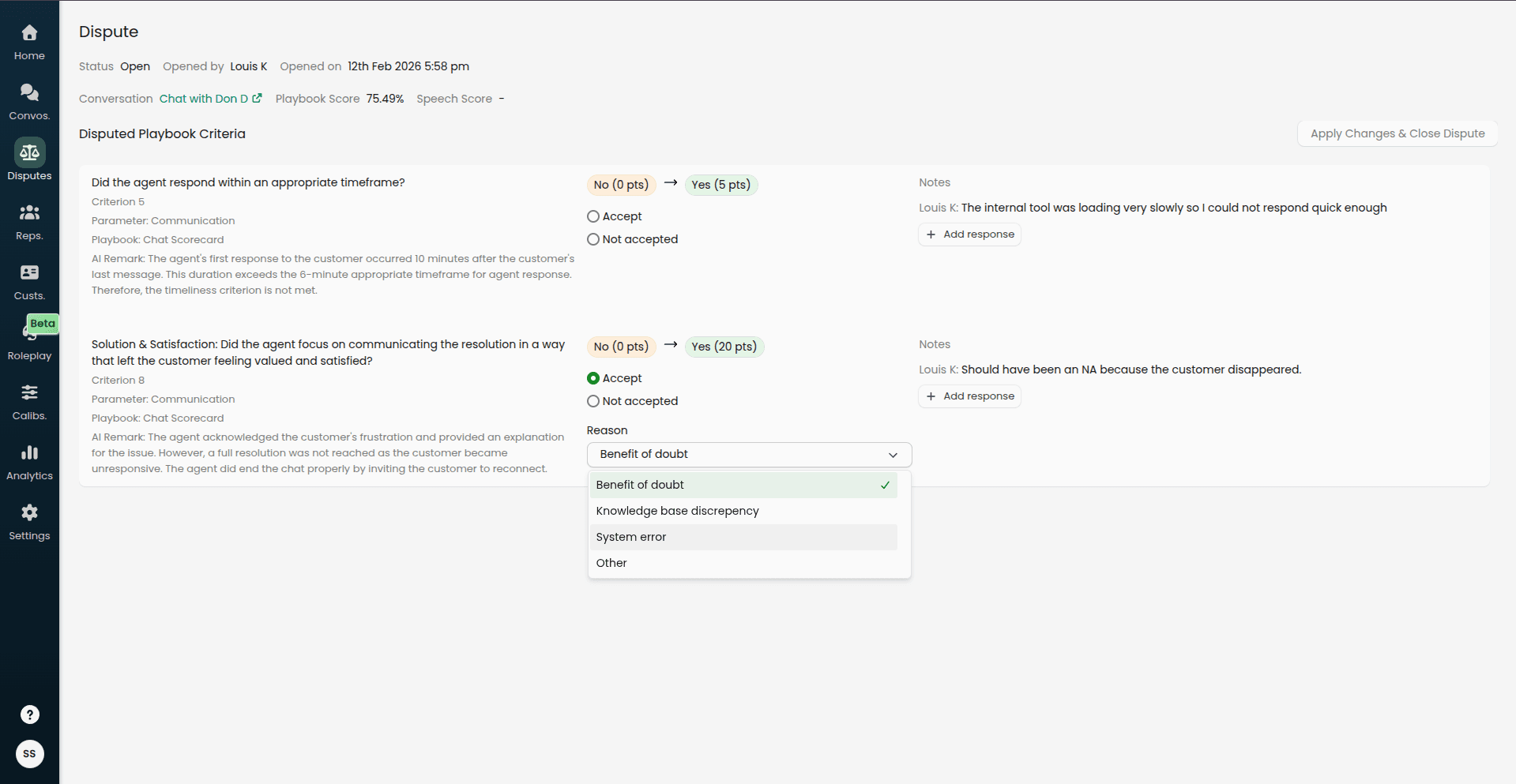
When you close the dispute, the dispute moves to the closed state and the conversation score reflects the final decision.
Re-opening or editing a closed dispute
Closed disputes can still change if your team allows it.
If the rep re-opens the dispute, you can review the new rebuttal and work through the criteria again.
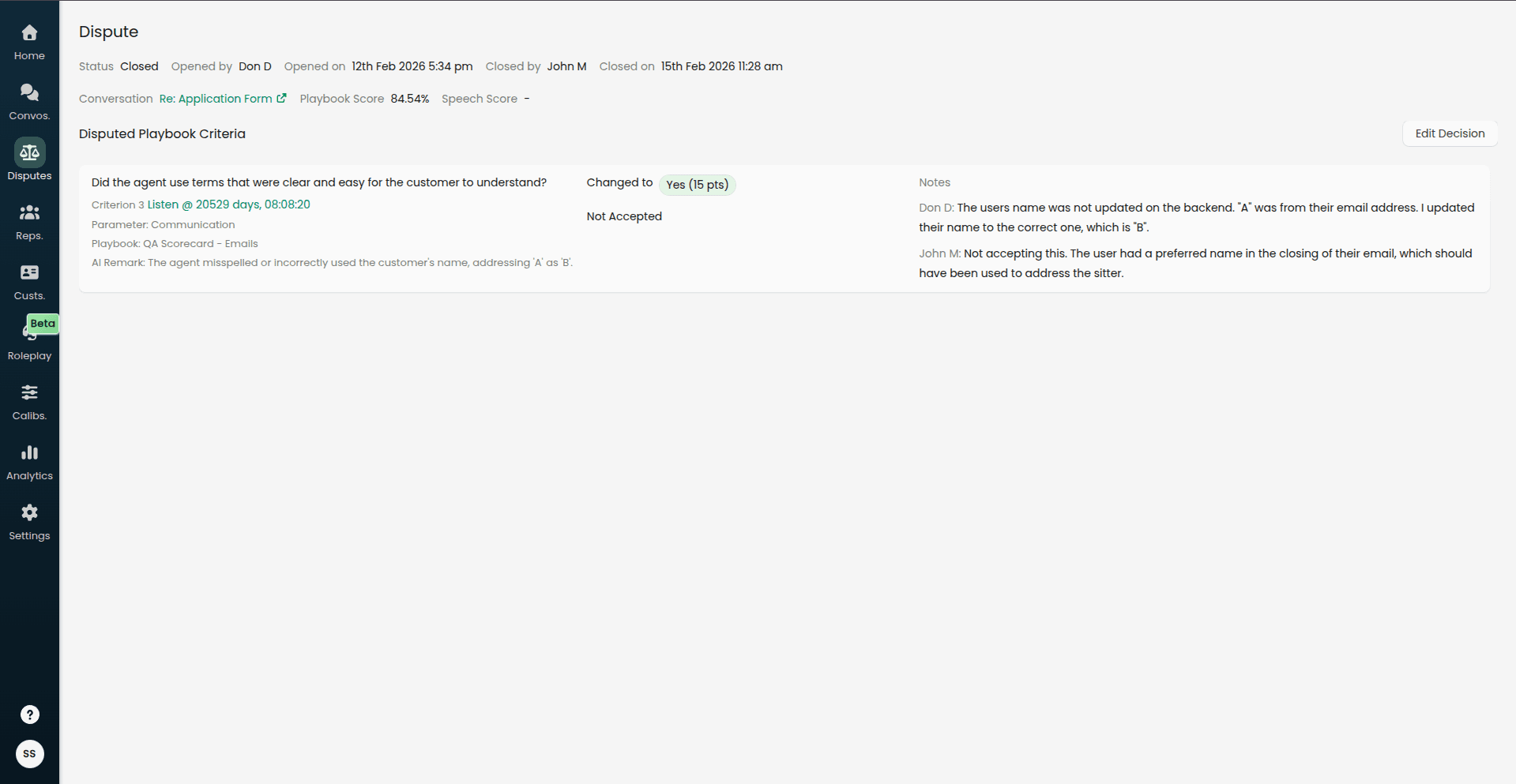
If you need to update a closed decision during the allowed close window, select Edit Decision and adjust the accepted or rejected items before saving your changes.
Dispute settings
If you need to adjust the dispute process for the team, open Settings → Administrative and select the Disputes tab. There you can change the raise window, the close window, and the maximum number of re-opens allowed.
Next step
If you are a representative, see Conversation Disputes for Representatives for the step-by-step submission flow.