
Conversations Page
Browse, search, and filter all conversations your team has handled, with AI scores and status at a glance.
What is the Conversations Page?
The Conversations page is your central view of every customer interaction that Score has processed. From here you can search, filter, and sort through all incoming conversations — calls, chats, and emails — and open any individual conversation to review its scores, transcript, and AI evaluations.
This page is available to Admins, Managers, and Representatives. Representatives see the same list but can only access conversations assigned to them.
Navigating to the Conversations Page
Select Conversations in the main navigation menu. The page loads showing the last 30 days of conversations, sorted by date from newest to oldest.
Understanding the Conversations Table
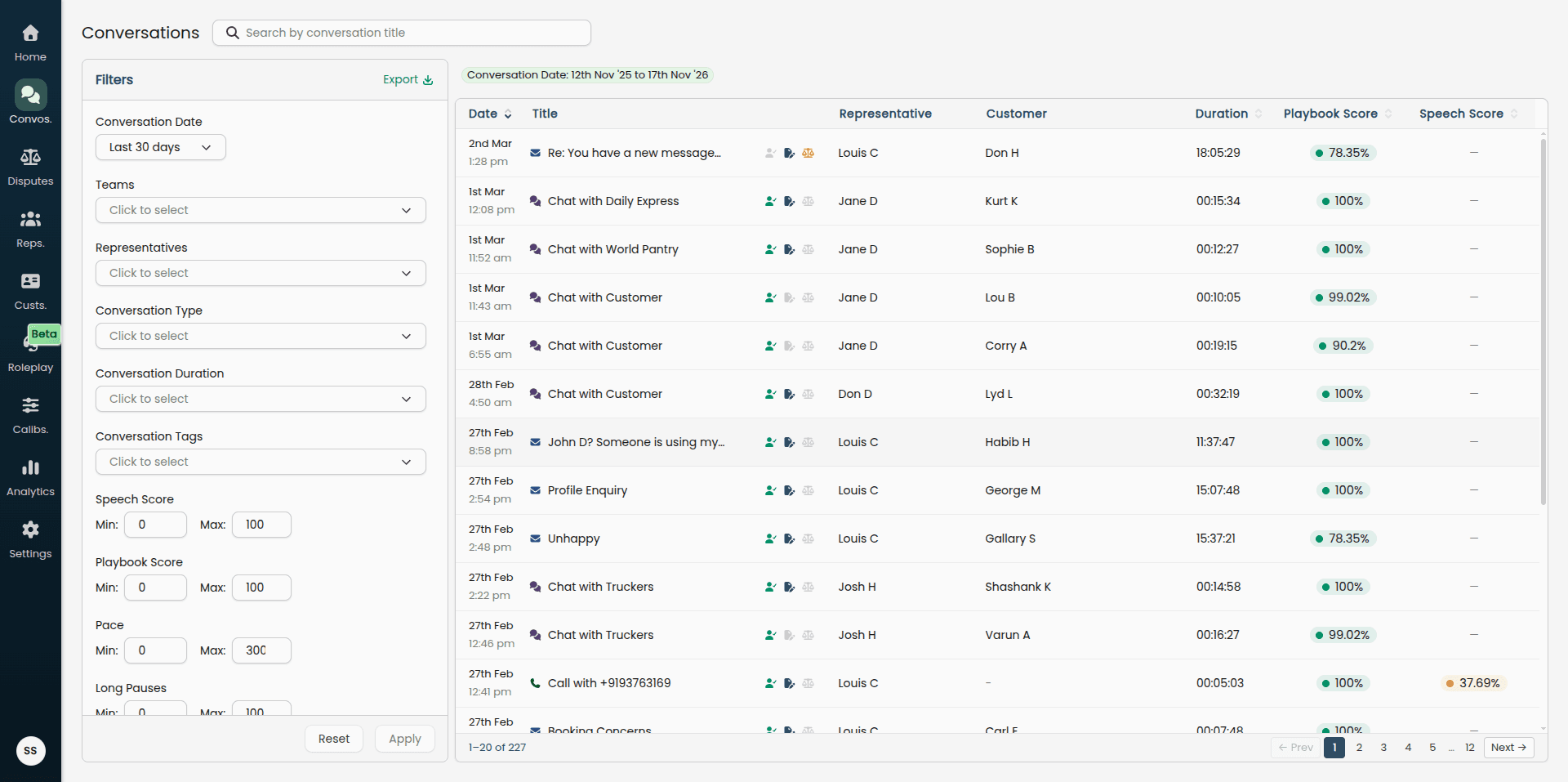
Each row in the table represents one conversation. The columns are:
Column | What it shows |
|---|---|
Date | The date and time the conversation took place on the source platform. |
Title | The conversation title, with a channel icon (call, chat, or email) and any tags applied to the conversation. |
(Indicators) | Status icons showing whether the conversation has been reviewed, manually audited, or disputed. Hover over any icon to see details. |
Representative | The team member who handled the conversation. |
Customer | The customer involved in the conversation, if known. |
Duration | How long the conversation lasted (shown for calls). |
Playbook Score | The AI-generated quality score based on the evaluated playbook. |
Speech Score | The AI-generated speech quality score (for calls). |
Click any row to open the full conversation view.
Status Indicators
The indicator column shows up to three icons for each conversation:
Reviewed — Lights up when an admin, manager, or representative has marked the conversation as reviewed.
Manual audit — Lights up when a manager or admin has manually changed one or more playbook evaluation results.
Disputed — Lights up when a representative has opened a dispute on the conversation. Hover to see whether the dispute is open or closed, and the date it was closed.
Dimmed icons mean the indicator does not apply to that conversation.
Score Display
Playbook and speech scores are shown as colour-coded score bubbles — green for high scores, amber for mid-range, and red for low scores. If a score is not available because the conversation ended prematurely or had an unauditable transcript, an icon appears in place of the score. Hover over it for the specific reason.
Searching for a Conversation
Use the Search by conversation title bar at the top of the page to find conversations by title. Results update after a short pause as you type.
When a search is active, the filter panel on the left is hidden and Score searches across the last 180 days regardless of your active date filter.
To return to filtered browsing, clear the search bar.
Filtering Conversations
The filter panel on the left side of the page lets you narrow results across several dimensions. Filters persist between sessions — your last applied filters reload automatically when you return to the page.
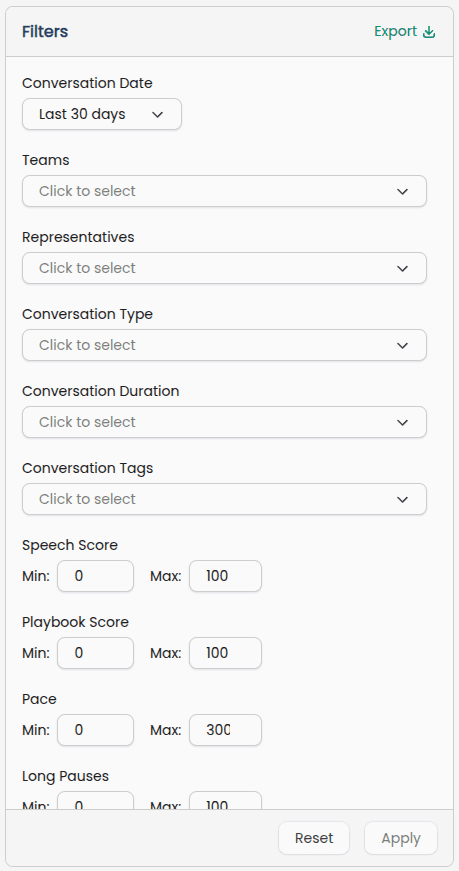
Available filters include:
Date range — Choose a preset (e.g. last 30 days, last 7 days) or set a custom from/to date.
Channel — Filter by Call, Chat, or Email.
Representative — Show conversations handled by specific team members.
Team — Show conversations from a specific team.
Playbook — Show conversations evaluated against a specific playbook.
Score range — Slide the range to show only conversations within a certain playbook or speech score band.
Tags — Filter by one or more conversation tags.
Reviewed status — Show only reviewed or unreviewed conversations.
After setting your filters, click Apply to reload the table. To reset all filters, click Clear.
Active Filters Bar
A summary bar above the table shows your currently active filters as readable labels, so you can always see at a glance what is applied. This bar remains visible while you browse the table.
Sorting the Table
Click any sortable column header to sort the table by that column. Sortable columns are:
Date (default — newest first)
Duration
Playbook Score
Speech Score
Click the header once to sort descending. Click again to sort ascending. Only one column can be sorted at a time. Your sort preference persists alongside your filters between sessions.
Pagination
The table shows 20 conversations per page. Use the pagination controls below the table to move between pages.
Exporting Conversations
An Export option is available in the filter panel. This exports all the conversations that fall into the currently applied filters to a CSV file.
Opening a Conversation
Click any row to open the full conversation detail view, where you can review the AI evaluations, playbook scores, customer concerns, and transcript. See Conversations — Detail View for a full walkthrough of that page.