

What are Roleplays?
Roleplays is a training feature in Score that lets your support representatives practice handling real customer situations before they encounter them on the job. Representatives have a live conversation with an AI-powered customer — either over voice or through chat — and receive an automatic performance evaluation when the session ends.
As an admin or manager, you design the training scenarios, choose which AI customer personas are used, assign roleplays to your team, and track results through the same Playbook scoring system used for real conversations.
Benefits
Structured practice: Representatives train on specific issue types you care about, not just whatever comes through the queue
Safe environment: Mistakes in a roleplay have no consequences, encouraging more honest practice
Consistent evaluation: Every roleplay is scored against your Playbooks automatically, using the same criteria as live QA
Flexible format: Run roleplays as voice calls or text chat to match how your team actually works
Key Concepts
Understanding these four building blocks makes the rest of the feature click.
Persona
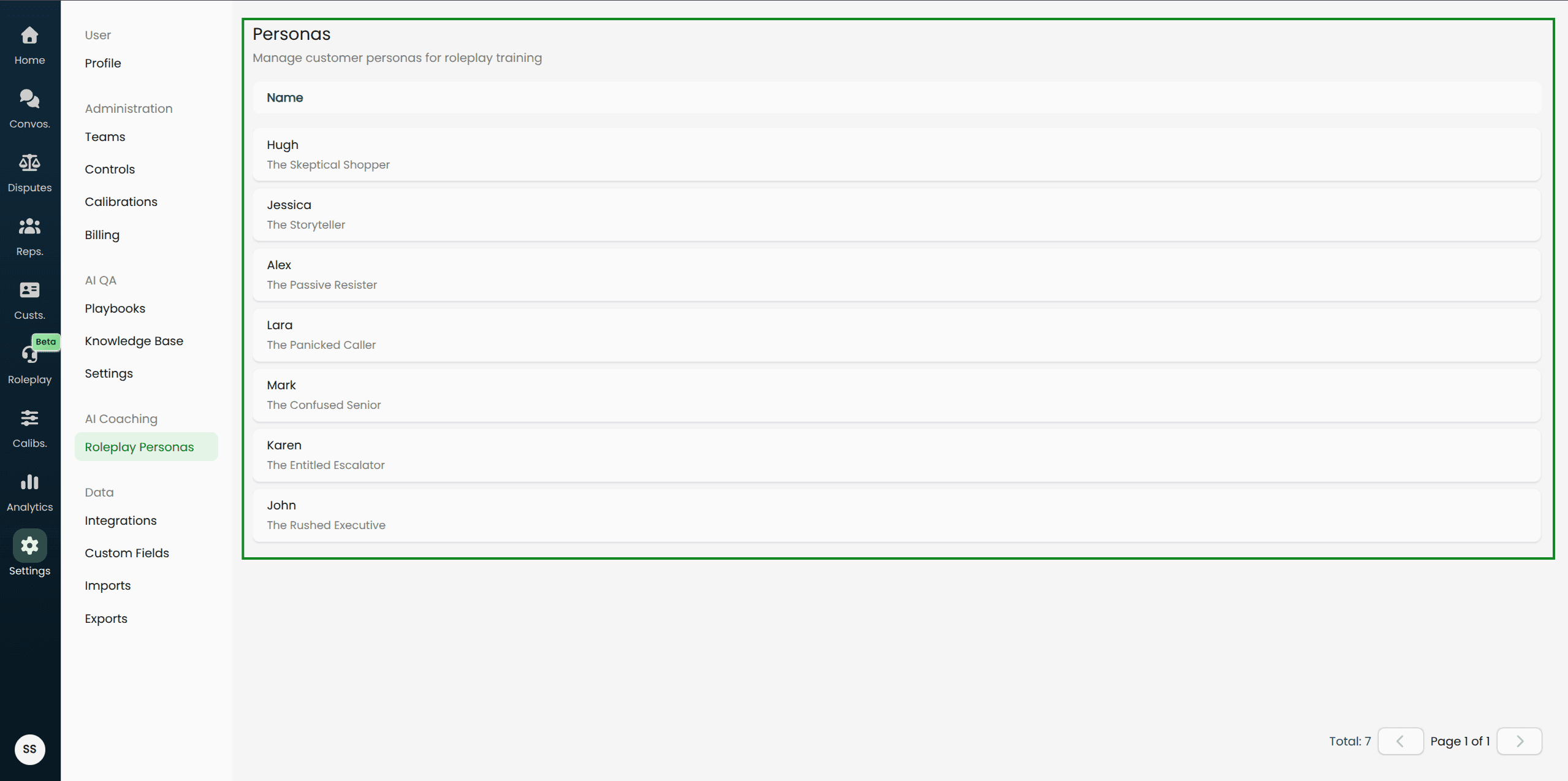
A persona is the AI customer character that the representative talks to. Each persona has a name, a personality description, and a voice (for voice roleplays). Examples: "Angry Customer", "Confused First-Timer", "Tech-Savvy Power User".
Personas are managed by Score and are available to all organizations. You do not create or edit personas — you choose from the available list when setting up a roleplay.
To browse available personas, navigate to Settings → Personas.
Scenario
A scenario is the specific training situation your representative will practice. It defines:
Customer details: The fictional customer's address, email, date of birth, and phone number — context the AI uses to stay in character
Scenario details: The core issue the customer is calling/writing about, potential objections they might raise, what outcome they want, and any relevant history
Scenarios are created by your team and belong to your organization only. You build your own library of scenarios tailored to your most important training needs.
Roleplay
A roleplay (also called a simulation) is a single training session. It is created by combining:
A persona (who the AI customer is)
A scenario (what the situation is)
A representative (who is practicing)
One or more Playbooks (how performance will be evaluated)
A difficulty level (Easy, Medium, or Hard — used for tracking purposes)
A conversation type (Voice or Chat)
One roleplay is created per representative. If you assign the same scenario and persona to five representatives, five separate roleplays are created.
Conversation Type
Each roleplay uses one of two formats:
Voice: The representative speaks out loud with the AI persona in real time over their microphone and speakers. This mirrors a phone or voice support workflow.
Chat: The representative types messages to the AI persona and receives text replies. This mirrors a live chat or messaging support workflow.
Choose the format that matches your team's actual work. You can create both voice and chat roleplays using the same scenario and persona.
Navigating the Roleplays Page
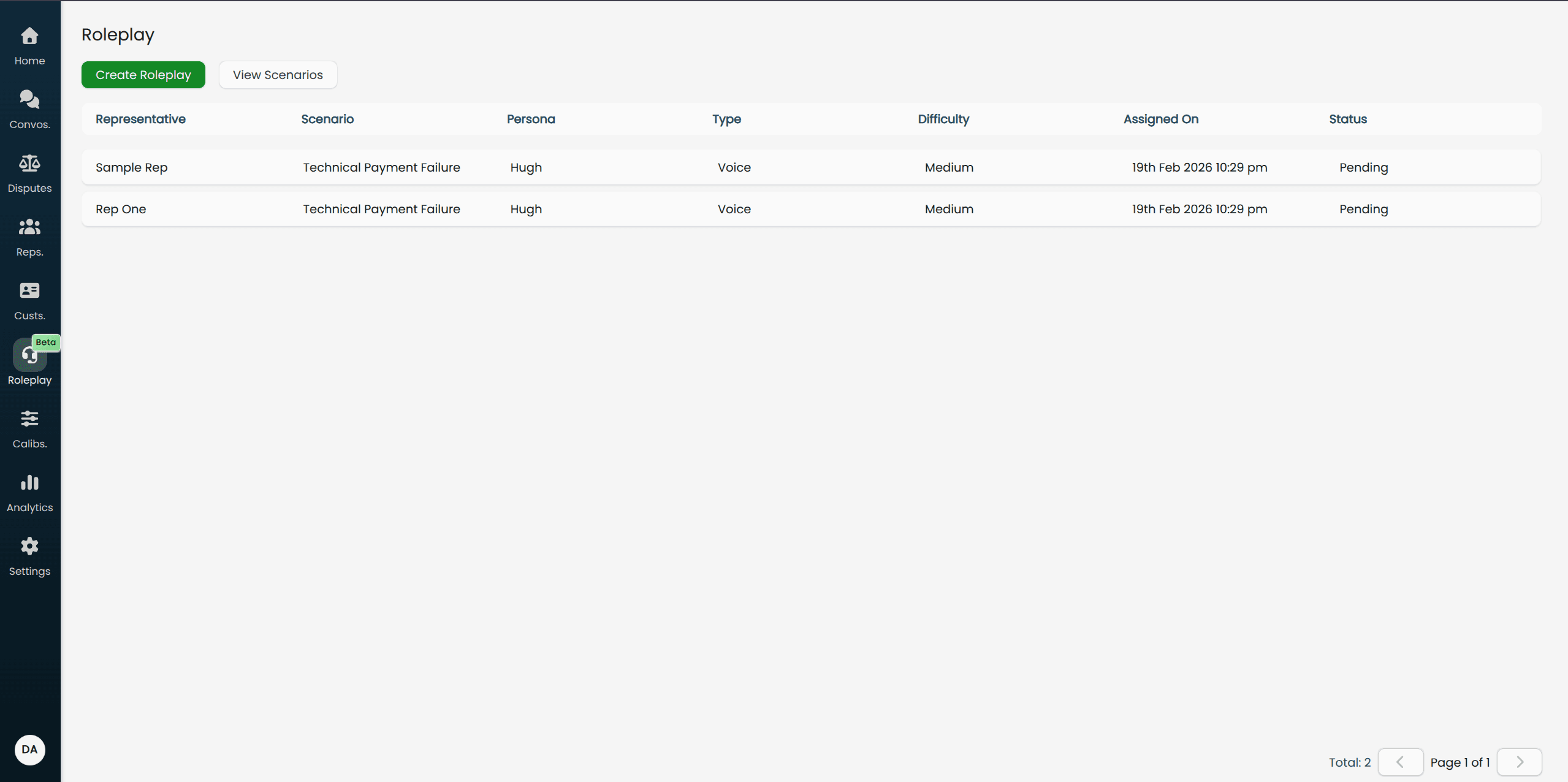
Navigate to Roleplay in the main menu to reach the roleplays list.
The Roleplays Table
Each row in the table represents one roleplay assigned to one representative. The columns are:
Column | What it shows |
|---|---|
Representative | The team member this roleplay is assigned to |
Scenario | The training scenario being used |
Persona | The AI customer character |
Type | Voice or Chat |
Difficulty | Easy, Medium, or Hard |
Assigned On | When the roleplay was created |
Status | Pending, In Progress, or Completed |
Status values:
Pending: The representative has not started the roleplay yet
In Progress: The representative has started but not finished the conversation
Completed: The conversation has ended and results are available
Clicking a completed row opens the results. Clicking a pending row (as an admin) opens a side panel showing the roleplay's details.
Filtering and Pagination
The table shows 10 roleplays per page. Use the pagination controls at the bottom to move between pages.
Viewing Scenarios
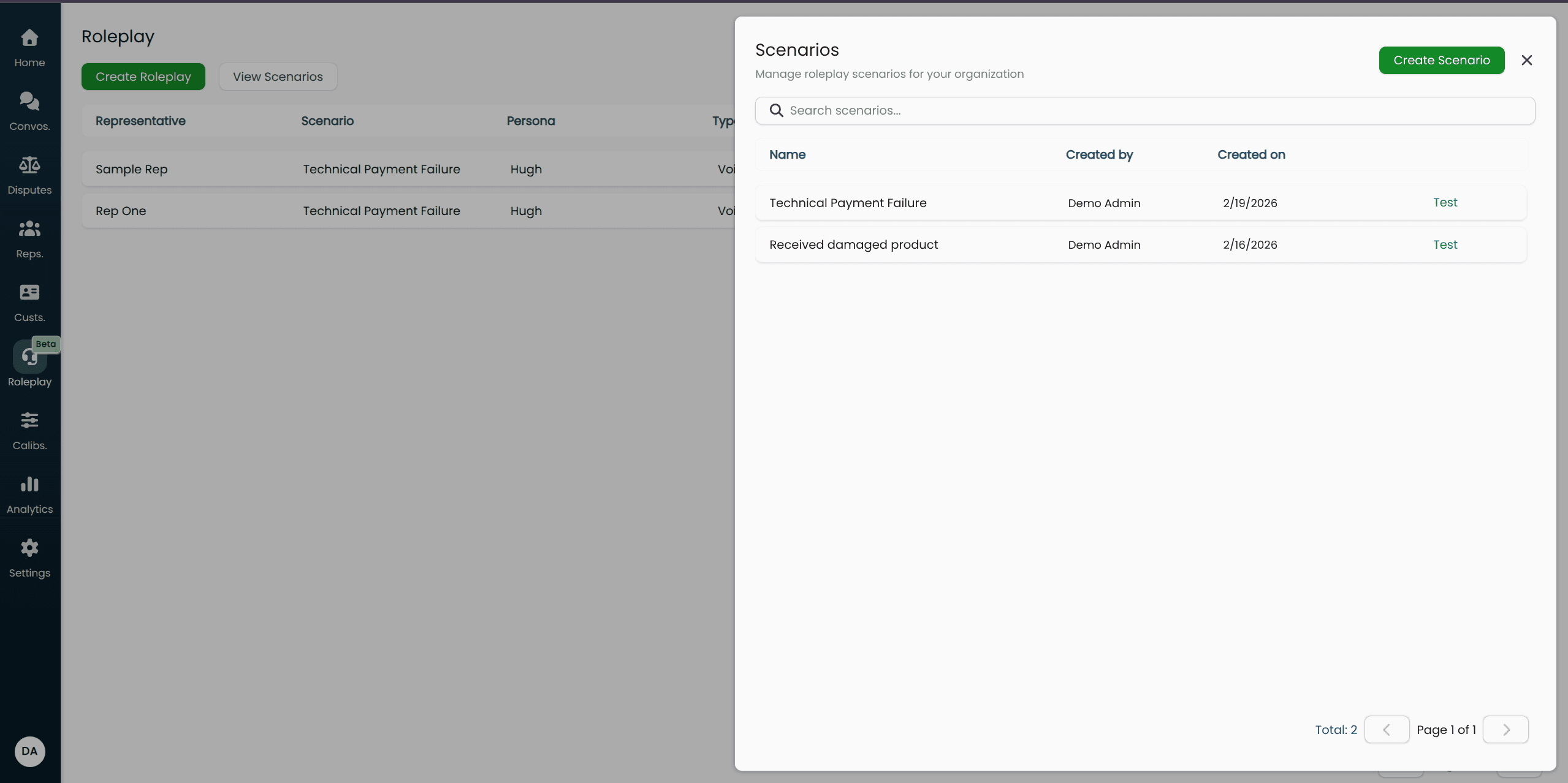
Click View Scenarios to open a side panel listing all scenarios your organization has created. From here you can review existing scenarios before deciding whether to create a new one.
Understanding Personas
Personas are available to view under Settings → Personas. This page shows all the AI customer characters available for use in roleplays, along with their descriptions.
As an admin, this page is view-only — personas are provided by Score. When you are setting up a roleplay, you will select from these personas in the creation wizard.
The persona's description tells you how the AI will behave during the conversation. Read it before choosing a persona to make sure its personality matches the training goal for your scenario.
Next Steps
Now that you understand the core concepts, continue with: Creating Scenarios and Roleplays
You will learn how to:
Create training scenarios for your team
Run through the three-step roleplay creation wizard
Assign roleplays to one or more representatives at once