

Post-installation Setup Guide
This guide covers what you can do after an integration is connected.
Enable automatic sync
Automatic sync keeps Score up to date without needing to perform manual imports.
On the integration settings page, toggle Automatic Sync on.
Score will regularly pull new conversations that match your sync settings.
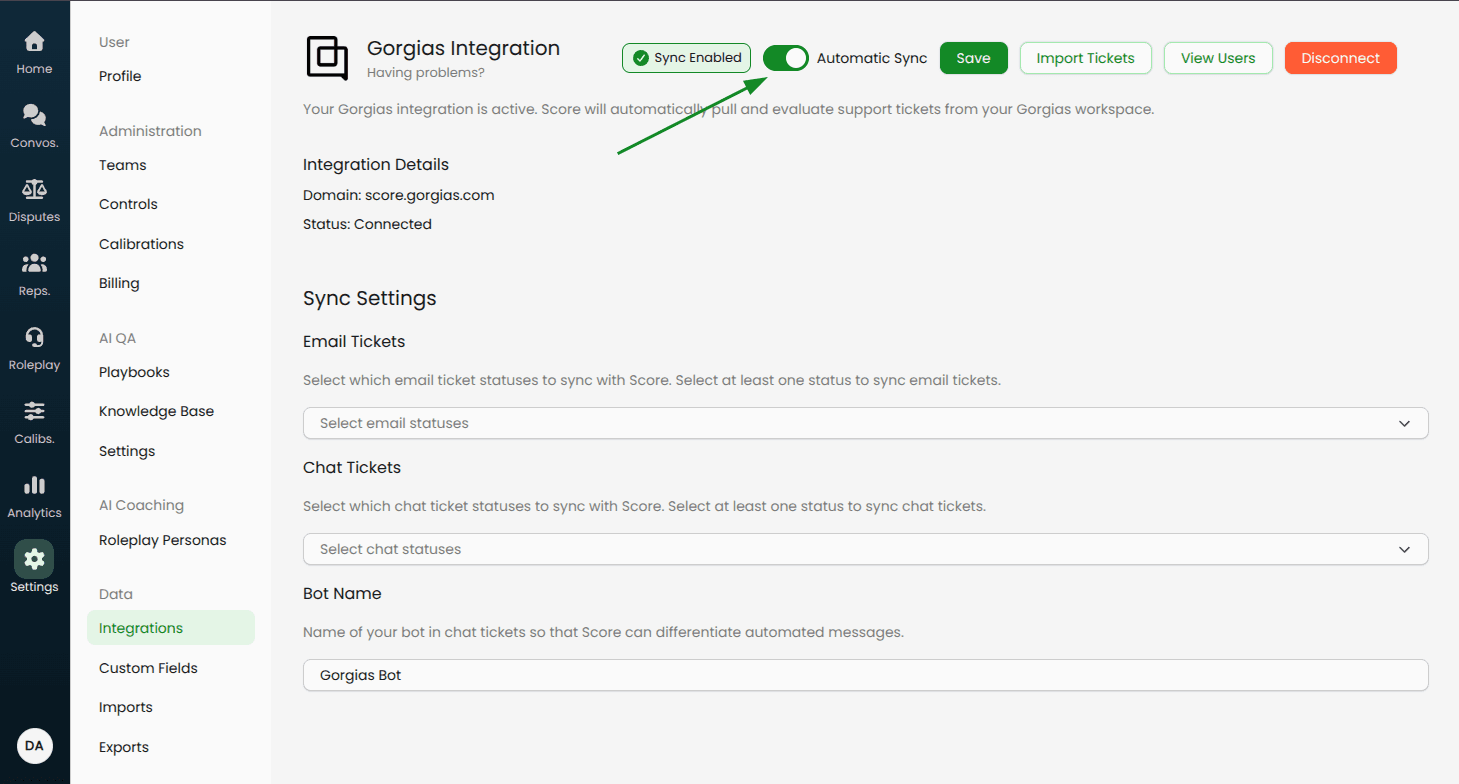
Note: It is important to note that only users that are mapped to representatives will have their tickets synced into Score AI. You can follow the steps outlined in the next section to perform this mapping between representatives in Score to the users in your integrated platform.
Map users to representatives
Mapping ensures that conversations are assigned to the correct Score representatives.
Open the integration’s settings page in Settings → Data → Integrations.
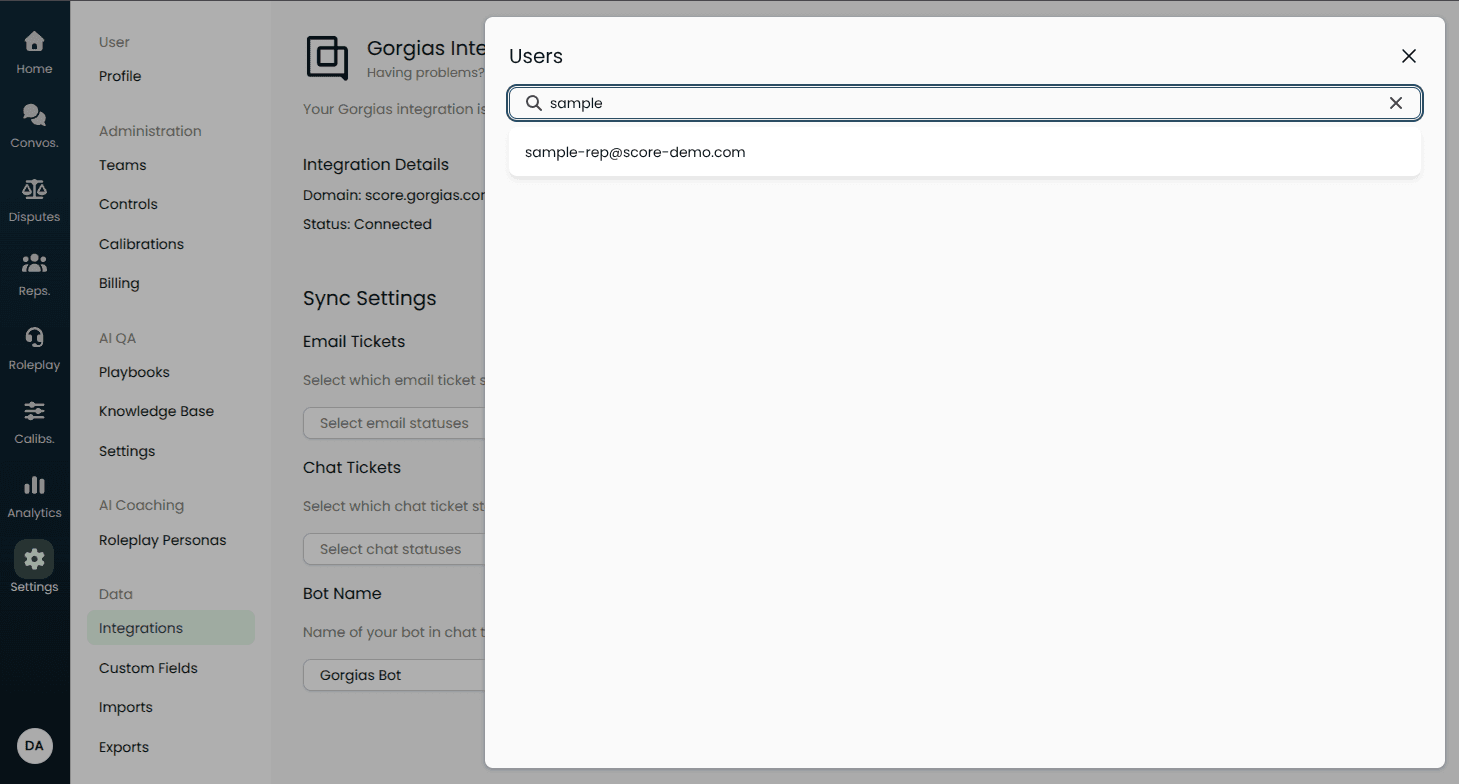
Click View Users (or Map Users).
Search and select a representative added to Score.
Select a user from your integration to complete the mapping.
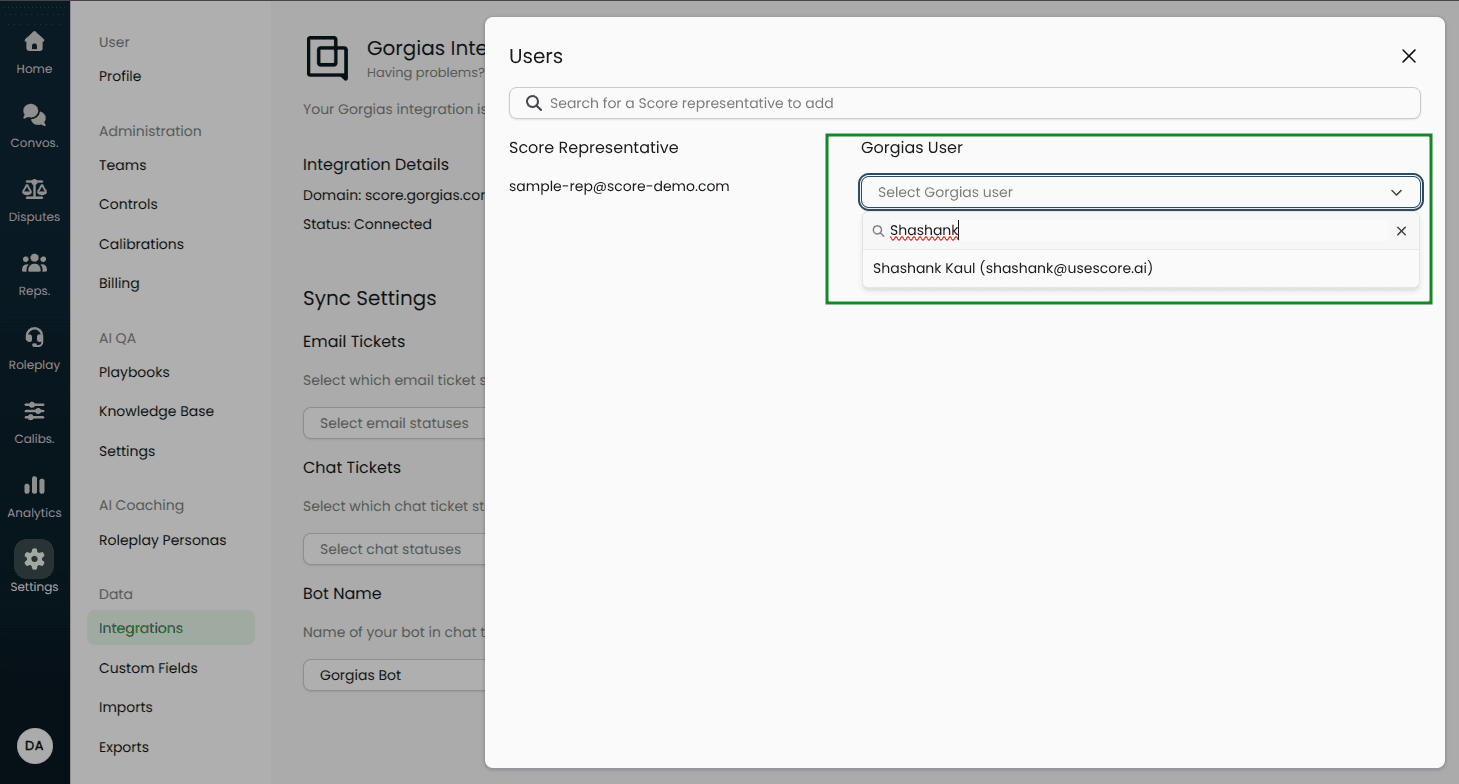
Repeat for the rest of your team.
Configure custom field mappings
Custom fields let you filter and report on conversation metadata in Score.
Go to Settings → Data → Custom Fields.
Click Add Custom Field.
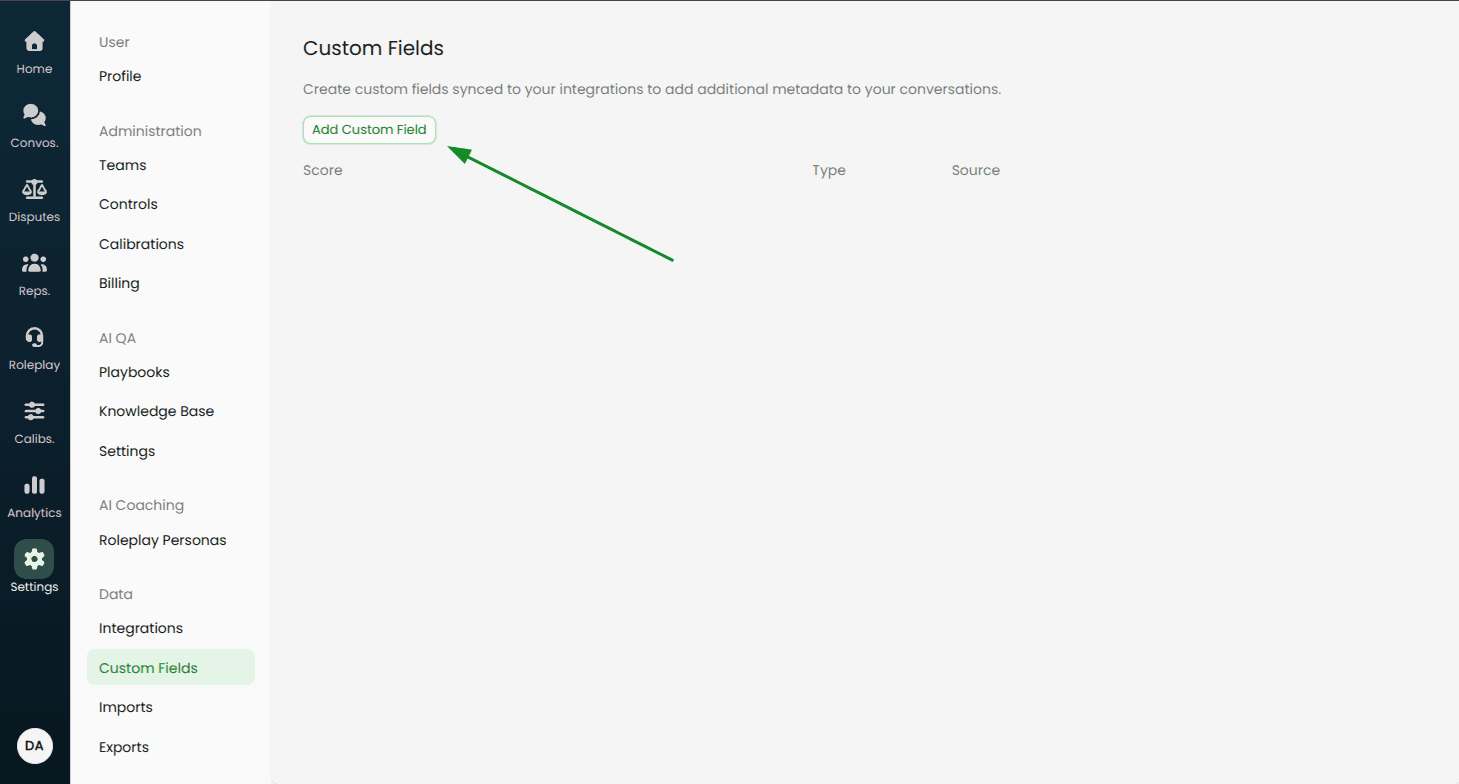
Choose a "Source" field from your integration. This field will be copied over to Score when we pull tickets/conversations into our platform. Note that this is not a real-time sync and once the conversation is pulled, changes to the field in your integration will not reflect in Score.
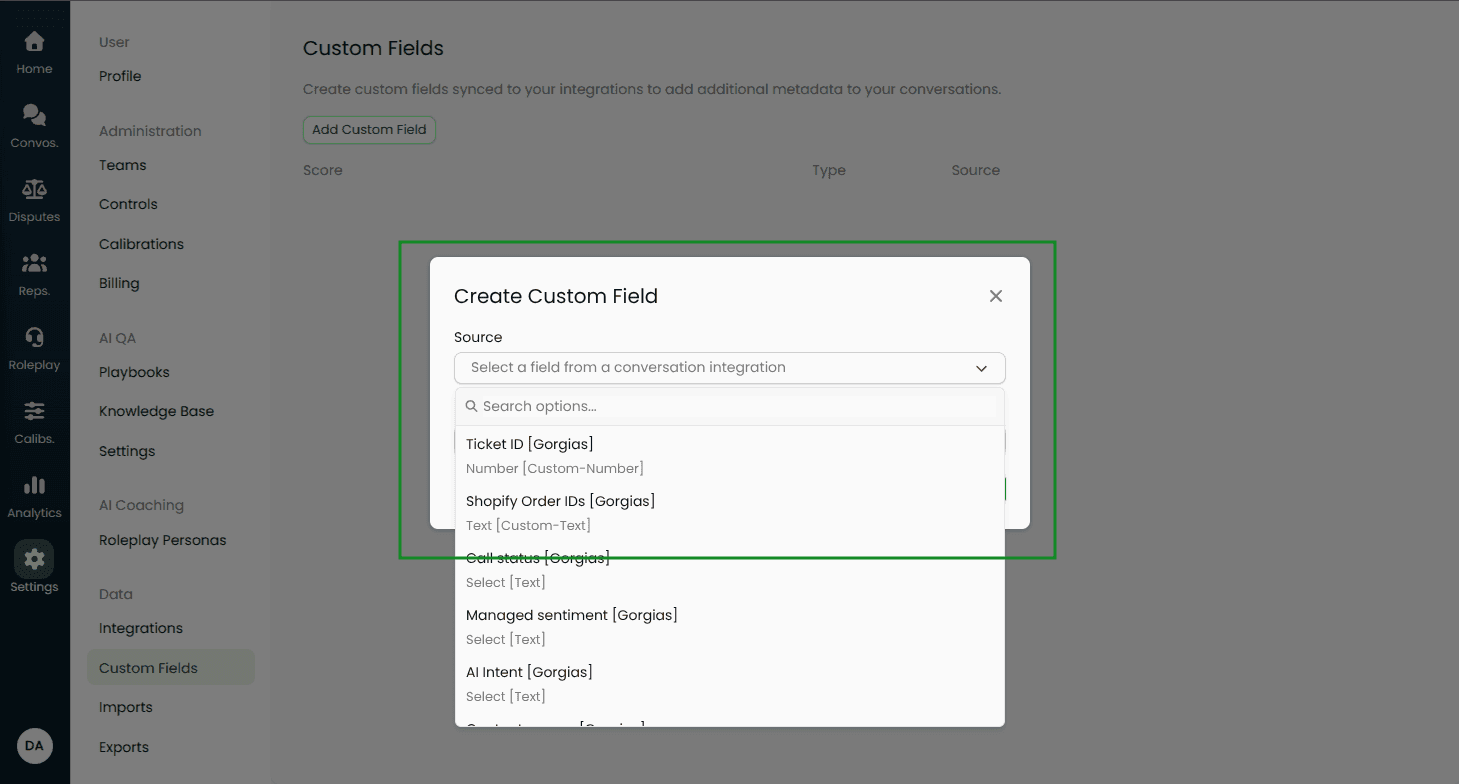
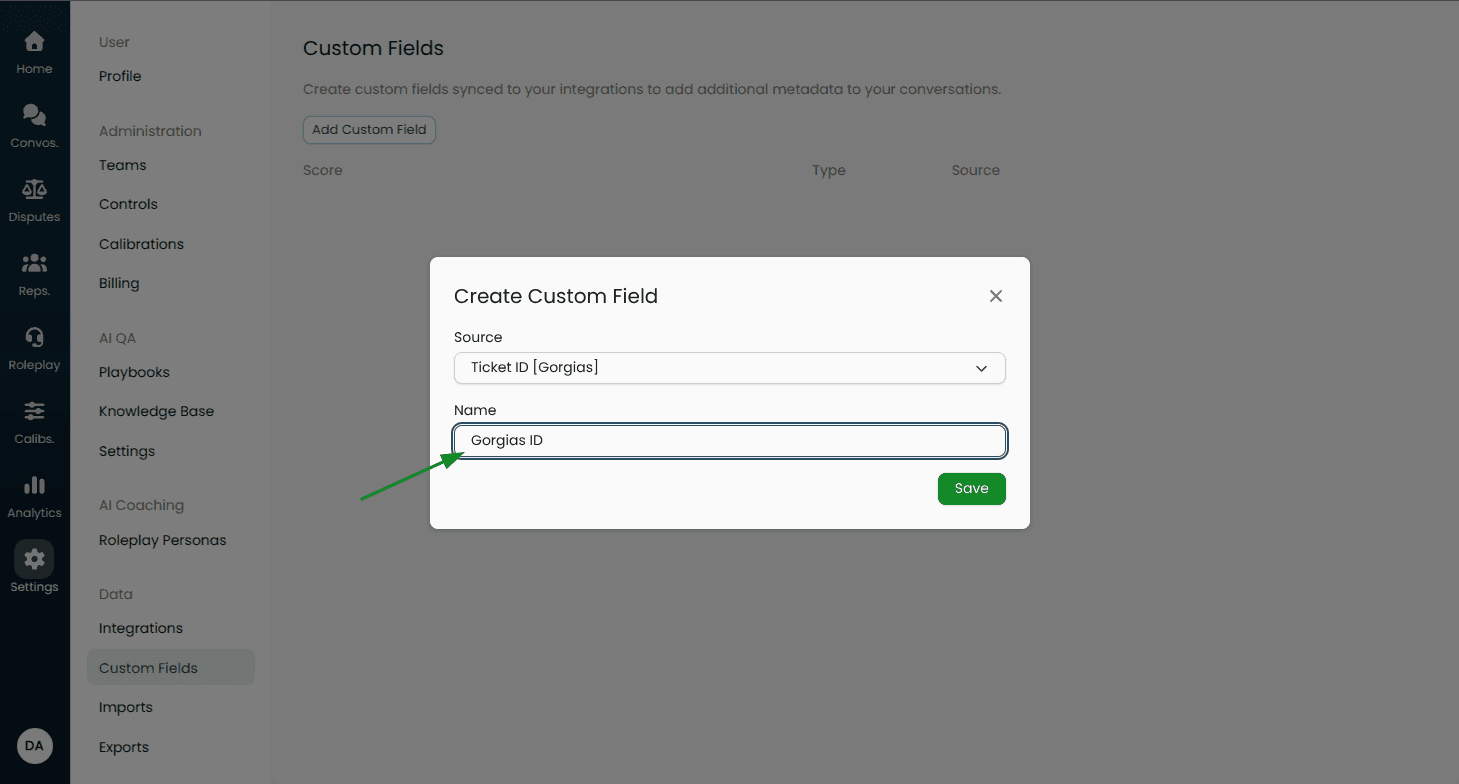
Optionally rename the field (Score-only) and click Save.
If you want a different sync behavior (e.g., additional statuses or time windows), contact your Score point-of-contact or email help@usescore.ai.