
What is the Customers Page?
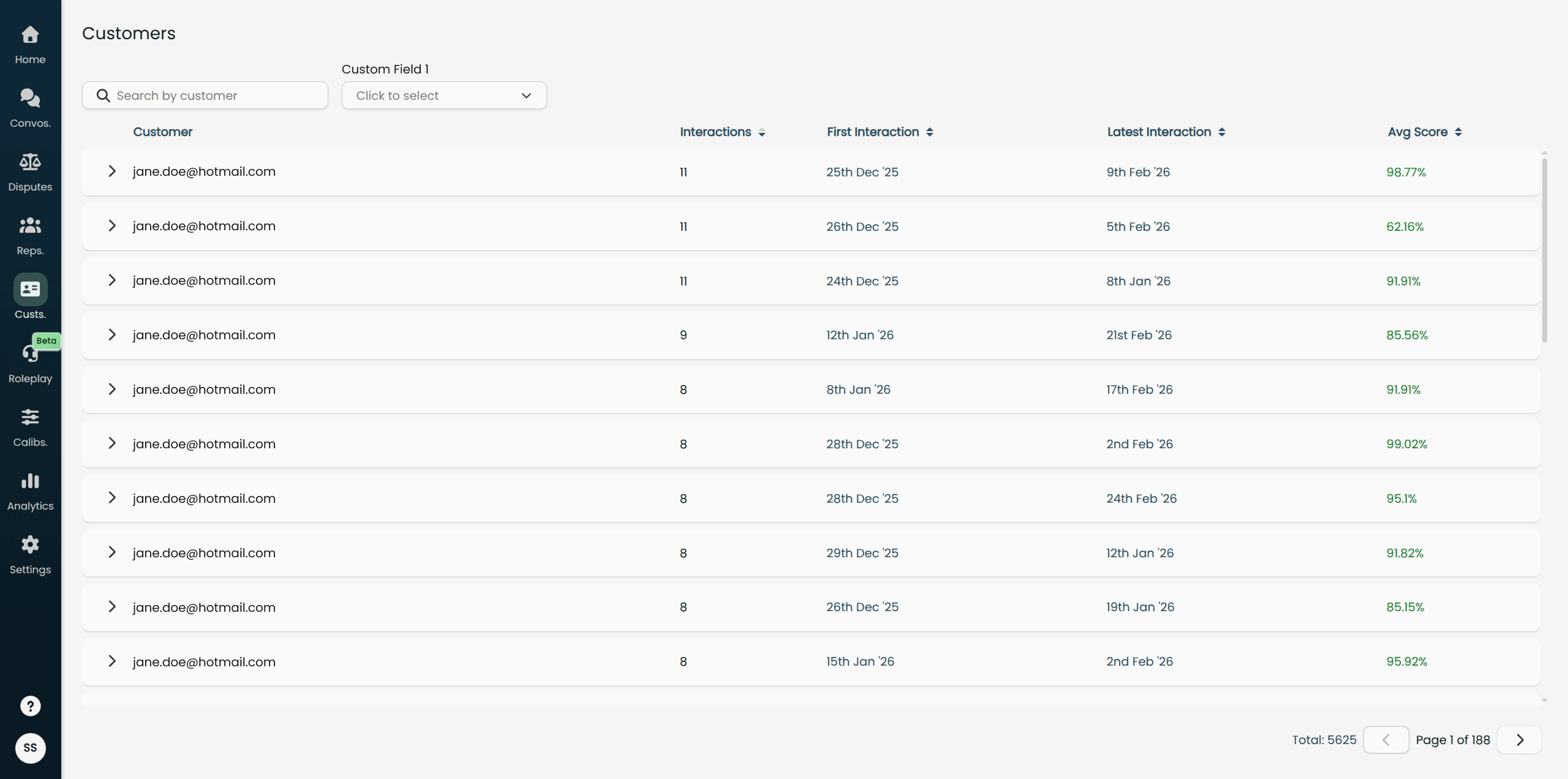
The Customers page gives you a high-level view of every customer your team has interacted with. For each customer, you can see how many conversations they have had, when those conversations happened, and how well your team performed across those interactions. You can drill into any customer to browse their full interaction history and jump directly to individual conversations.
This page is available to Admins and Managers only.
Navigating to the Customers Page
Select Custs. in the main navigation menu. The page loads with all customers sorted by interaction count, highest first.
Understanding the Customers Table
Each row in the table represents one customer. The columns are:
Column | What it shows |
|---|---|
Customer | The customer's identifier. If a display name is available, it appears below the identifier in smaller text. |
Interactions | The total number of scored conversations for this customer. |
First Interaction | The date of the customer's earliest recorded conversation. |
Latest Interaction | The date of the customer's most recent conversation. |
Avg Score | The average playbook score across all scored conversations for this customer. |
Customers with no scored conversations are not shown on this page.
Sorting the Table
Click any column header that has a sort indicator to sort the table by that column. You can sort by:
Interactions (default — highest to lowest)
First Interaction
Latest Interaction
Avg Score
Clicking a column header once sorts it in descending order. Clicking it again switches to ascending order. Only one column can be sorted at a time.
Searching for a Customer
Use the search bar above the table to find a specific customer by their identifier or display name. Results update as you type.
To clear the search, delete the text in the search bar. The full customer list will reload.
Filtering by Conversation Custom Fields
If your organisation uses custom fields on conversations, a filter input appears for each custom field to the right of the search bar. These filters let you narrow the customer list to only those who have at least one conversation matching your criteria.
Enter or select a value in a custom field filter to apply it.
Clear the field to remove that filter.
Multiple custom field filters can be active at the same time — customers must match at least one conversation against each active filter to appear in the results.
When a custom field filter is active, expanding a customer row will also show only the conversations that match the filter — not the customer's full history.
Viewing a Customer's Interaction History
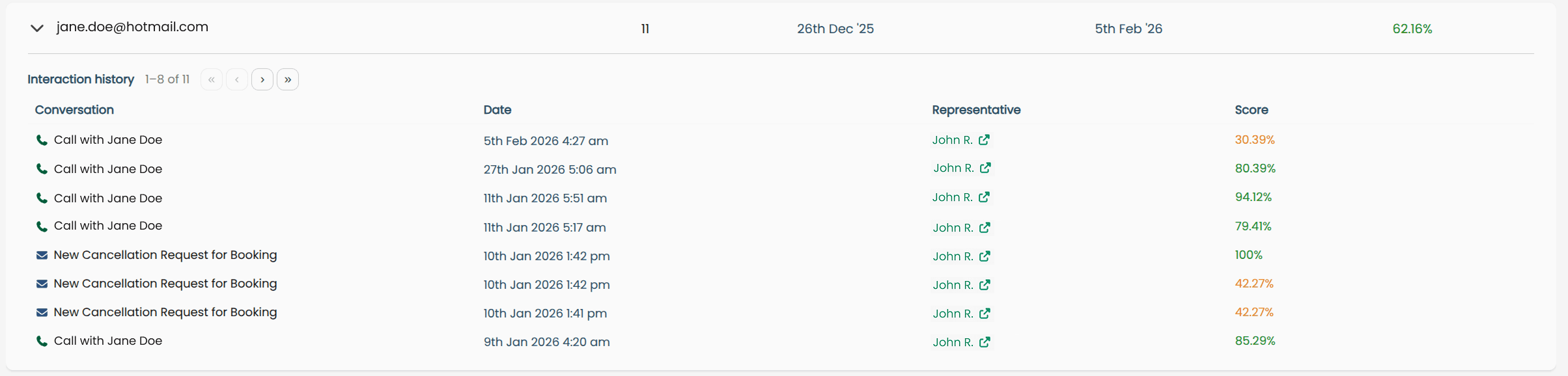
Click anywhere on a customer row to expand it. The row expands in place to reveal a paginated Interaction history table showing all scored conversations for that customer.
Interaction History Columns
Column | What it shows |
|---|---|
Conversation | The conversation title, with an icon indicating its type (e.g. voice or chat). Click the title to open the full conversation view in a new tab. |
Date | The date and time the conversation took place. |
Representative | The team member who handled the conversation. Click their name to open their representative profile in a new tab. |
Score | The playbook score for that individual conversation. |
Navigating Pages of Interactions
The interaction history shows 8 conversations per page. Use the navigation buttons to move through pages:
« — Jump to the first page
‹ — Go to the previous page
› — Go to the next page
» — Jump to the last page
The current range and total are shown next to the navigation controls (for example, "1–8 of 23").
Click the row again to collapse the interaction history.
Pagination
The main customer table shows 30 customers per page. If there are more than 30 customers, pagination controls appear below the table. Use these to move between pages or jump to a specific page number.